5. Using the Remote Control
The remote control works even without WiFi (it uses a dedicated wireless signal). Even if your internet goes down, the remote always works.
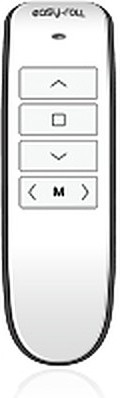
Remote Pairing (Channel Registration)
To use the remote, you need to register your blind to a remote channel. There are two ways to do this.
This is the easiest way — you just tap a channel on the app screen to assign it.
The device must be registered in the app first
Your blind must be registered in the app before you can register the remote through the app. If you haven't registered it yet, please complete 2. Register Device first. If you want to use the remote without registering in the app, see the [Register Directly with the Remote] tab.
Location: ⚙ next to the zone name → [Zone device settings] → [Register/Edit remote channel]
- Tap [Register/Edit remote channel] → [Register remote channel].
- Press the ■ Stop button on the remote once, then tap [I pressed the remote button] in the app.
- Once the remote ID is recognized, the app moves on to the next step. If it doesn't, press the Stop button again and tap [I pressed the remote button] once more.
- Select the channel (1–5) to use for each blind, then tap [Register] to finish.
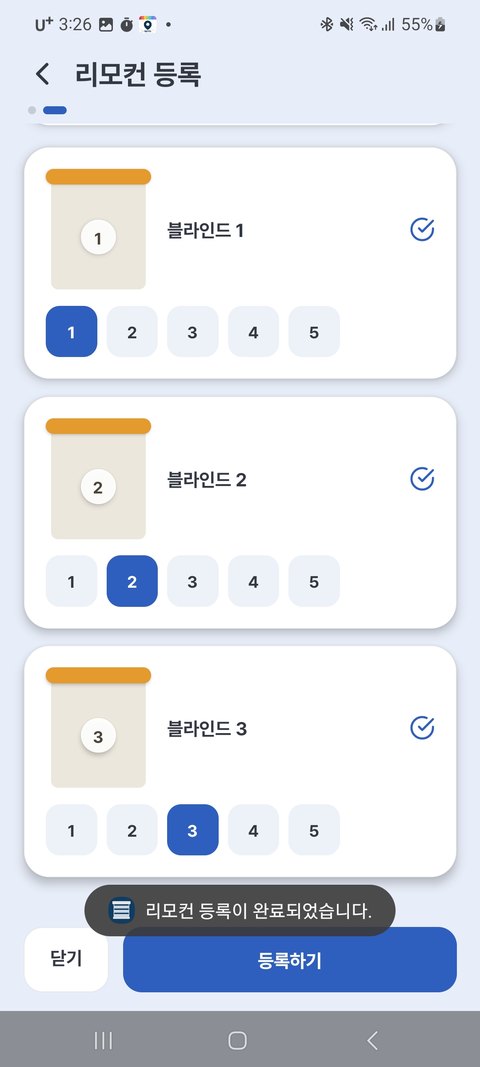
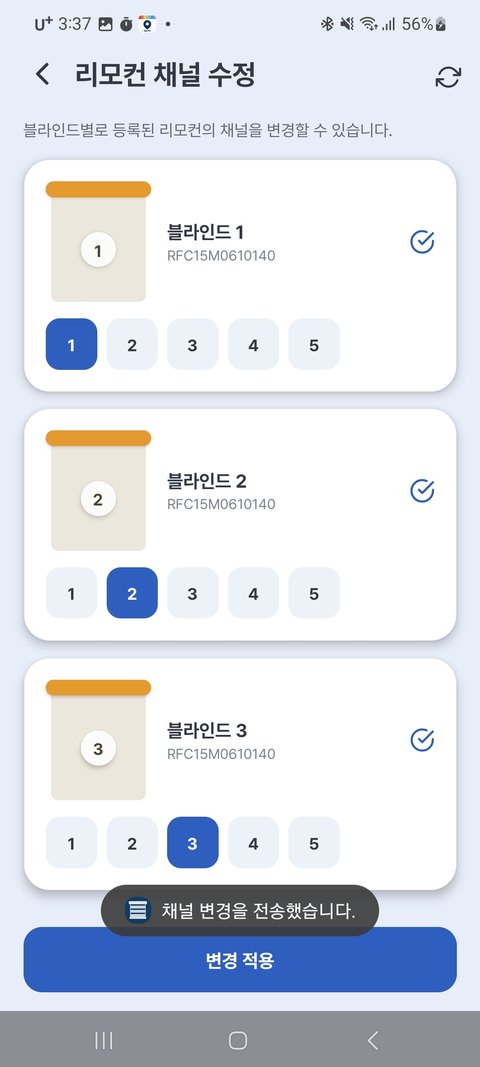
💡 To change a channel, go to [Register/Edit remote channel] → [Edit remote channel], pick the channel for each blind, and tap [Apply changes].
This is how to register using just the remote and the blind device, without the app.
Registering one blind to channel 1
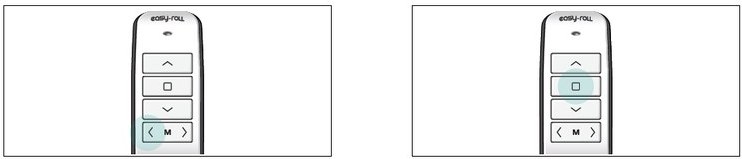
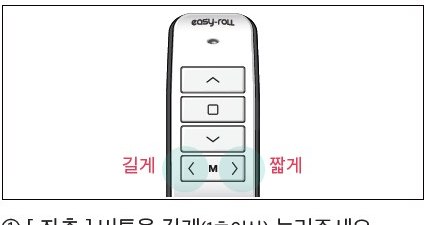
Left image = ① Hold [◀ Left] (1+ second) · Right image = ② Hold [■ Stop] for 5+ seconds
- Press and hold the [◀ Left] button on the remote (for at least 1 second).
- Press and hold the [■ Stop] button for at least 5 seconds.
- The LEDs on all blind motors will blink.
- Firmly press and quickly release the reset button on the blind motor you want to assign to channel 1.
- When the LED blinks rapidly several times, channel 1 is assigned!
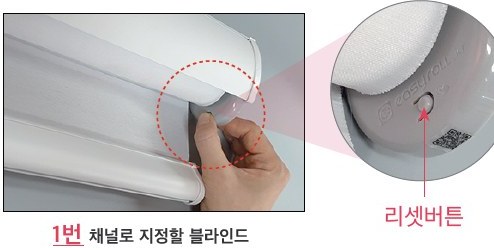
Registering channels 2–5
Only the number of short presses of the [▶ Right] button in step ① changes; everything else is the same.
| Channel | In step ① |
|---|---|
| 1 | Hold [◀ Left] only |
| 2 | Hold [◀ Left] + press [▶ Right] briefly once |
| 3 | Hold [◀ Left] + press [▶ Right] briefly twice |
| 4 | Hold [◀ Left] + press [▶ Right] briefly three times |
| 5 | Hold [◀ Left] + press [▶ Right] briefly four times |
Grouping several blinds on one channel (Group Registration)
If you register several blinds to one channel, they all move together on that channel. The method is the same — in step ③, just press the reset button on each of the blinds you want to group, one after another.
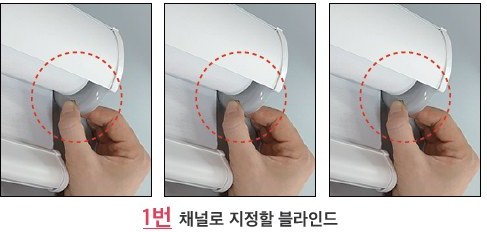
💡 Registration is retained even when the power is turned off.
Getting to Know the Remote Buttons
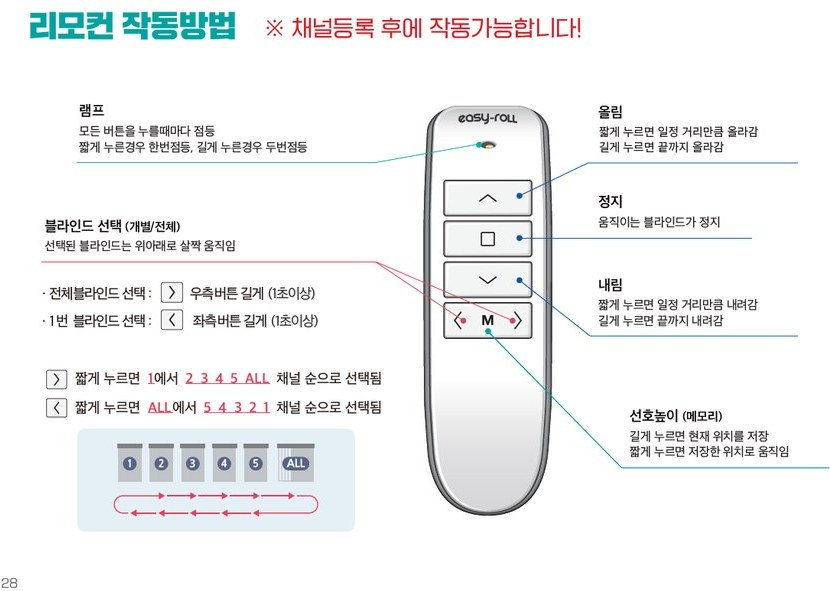
| Button | Action |
|---|---|
| ⌃ Up | Short press = raises a set distance · Long press = raises all the way up |
| ■ Stop | Stops a moving blind |
| ⌄ Down | Short press = lowers a set distance · Long press = lowers all the way down |
| ◀ ▶ Channel Select | Short press [▶ Right] = moves in the order 1 → 2 → 3 → 4 → 5 → ALLShort press [◀ Left] = moves in the order ALL → 5 → 4 → 3 → 2 → 1 (reverse)Hold [▶ Right] = selects all blinds · Hold [◀ Left] = selects blind 1 |
| M Favorite Height (Memory) | Long press = saves the current position · Short press = moves to the saved position |
| Lamp | Turns on each time you press the button (once for a short press, twice for a long press) |
💡 When you select a channel, the selected blind moves slightly up and down to let you know.
Controlling Several Blinds by Channel
| Channel | Action |
|---|---|
| 1 – 5 | Only the blinds registered to that channel operate |
| ALL | All registered blinds operate together |
Example: Register 3 living room blinds to channels 1, 2, and 3 respectively → switch channels to control them one at a time. If you register several blinds to the same channel, they move together on that channel.
When Things Don't Work
| Symptom | Solution |
|---|---|
| No response when pressed | Check that the channel is correct → replace the battery → re-register |
| One press moves a neighboring blind too | Channels are registered with overlap — re-register each to a different channel |
| Registration won't work | Try again close to the device (1–2 m) |