2. Register Device
This is the step where you connect your blind to your home Wi-Fi (router) and to the app. You only need to do it once. (About 3 minutes)
What You'll Need
- The EasyRoll app, logged in (see 1-2. Installing the App & Signing Up)
- Your home Wi-Fi (router) name and password (it must be 2.4GHz — see below)
- The blind's QR code
⚠️ Check these before registering (same as the in-app guidance)
- Blinds connect to 2.4GHz Wi-Fi only — if your router name ends in
...5G, choose the one without the 5G.- Your router must have a password set.
- Turn off your phone's Bluetooth and smartwatch while registering.
- Don't keep Bluetooth devices close to the router.
Registration Steps — Do Several at Once!
If you have multiple blinds, you can register them all at once, one zone (room) at a time.
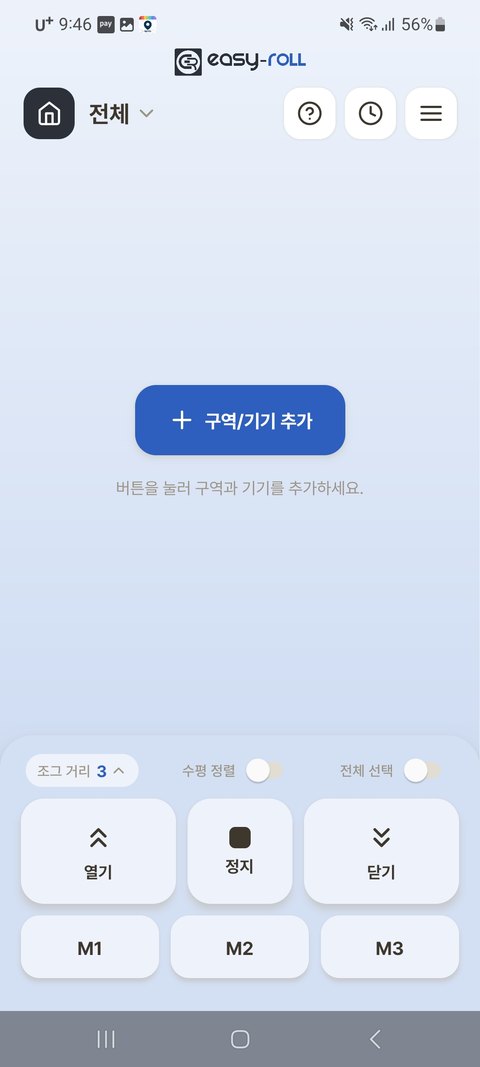
① Get started — This is the first screen you see after logging in. Tap the [+ Add zone/device] button in the center to begin.
On the [Add device] screen, tap [Add new zone]. (To add blinds to a zone you already created, choose [Add existing zone] instead — it appears only once you have at least one zone.)
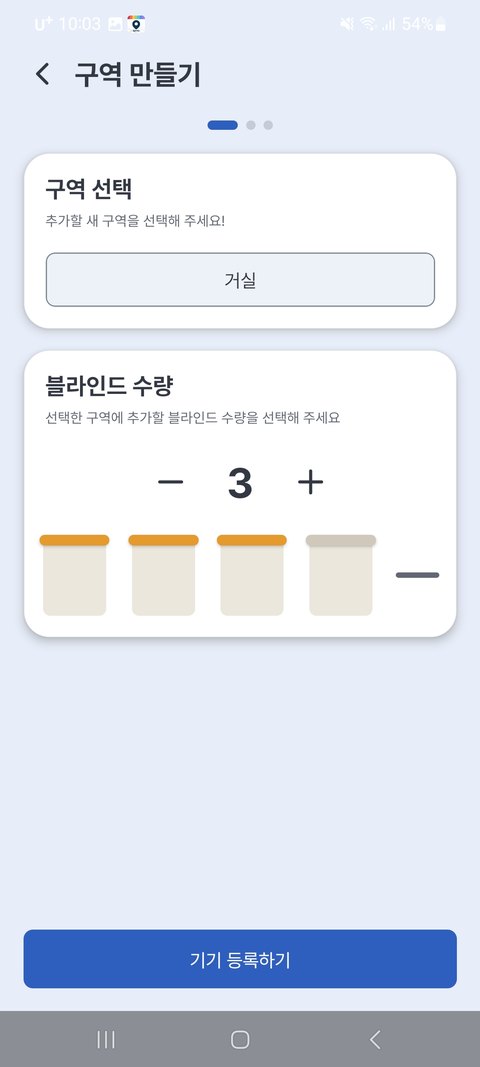
② Create a zone — Choose a zone (Living Room, Bedroom, etc.) and select the number of blinds you're installing.
③ Scan QR codes — Tap the blind illustrations on screen in order to photograph each device's QR code. (The number in the middle of each illustration becomes that blind's number — when you add to an existing zone, numbering continues from the first free number)
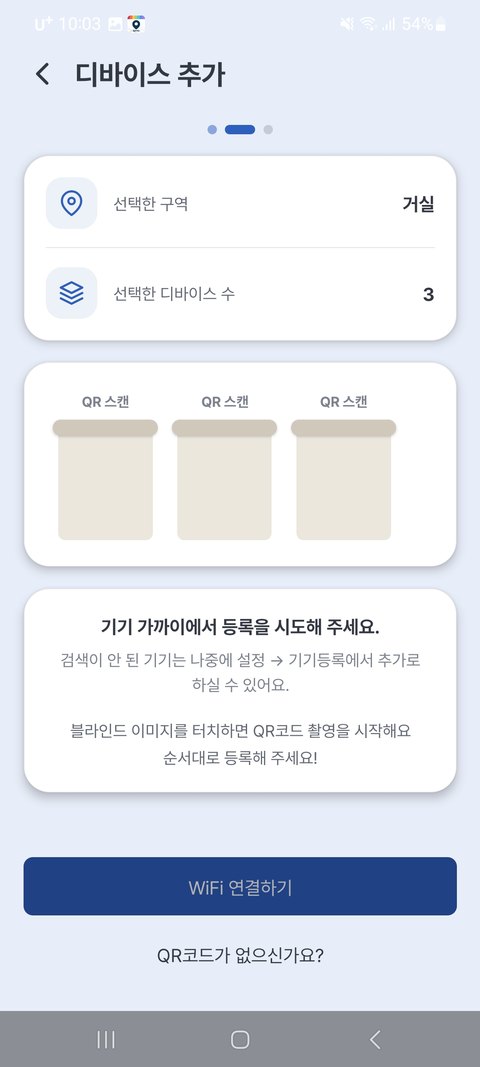
💡 If you don't have a QR code or scanning is difficult, you can use [No QR code?] at the bottom of the screen to search for and register nearby blinds.
The search list shows each device's signal strength (bars) and the last digits of its serial number. Stronger bars mean the device is closer to your phone, and matching the highlighted last digits with the device label (EZS…) makes it easy to tell which physical device is which.
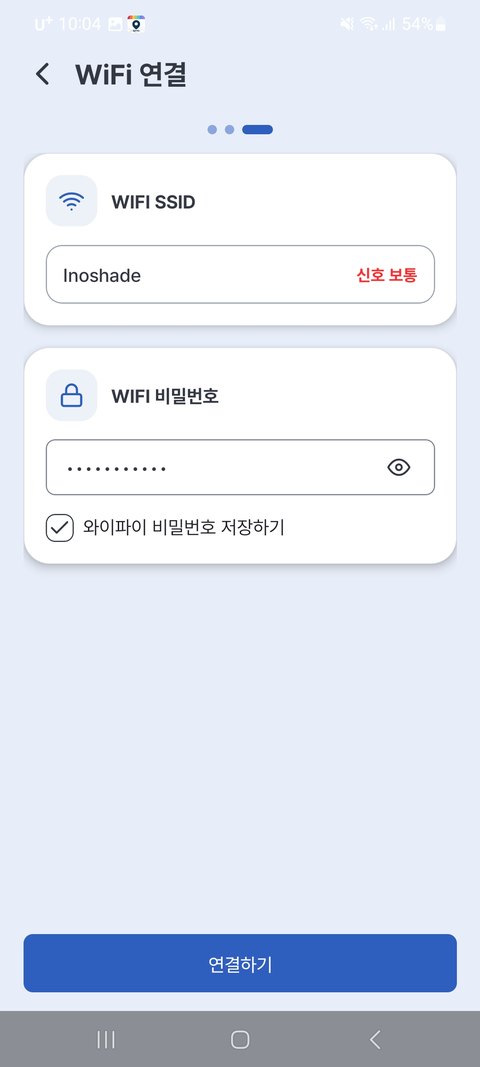
④ Connect to Wi-Fi — After reviewing the notes, choose your home Wi-Fi from the list and enter the password.
⑤ Automatic registration — Your blinds connect automatically, one after another. (Preparing → Sending Wi-Fi info → Verifying device → Connected)
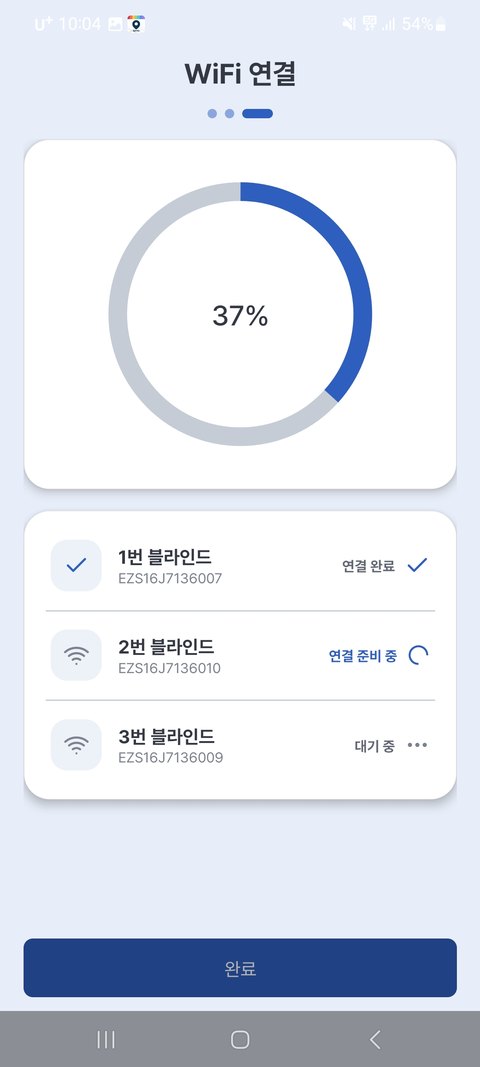
💡 Seeing "Waiting, will retry soon" partway through is normal. If the signal is briefly delayed, the app retries automatically — don't treat it as an immediate failure; just wait a moment.
💡 While registration is in progress, a [Stop registration] button appears below [Finish]. If one device keeps retrying and never finishes, tap it — devices already registered are kept, only the remaining ones stop, and you return to the main screen.
⑥ Registration complete!
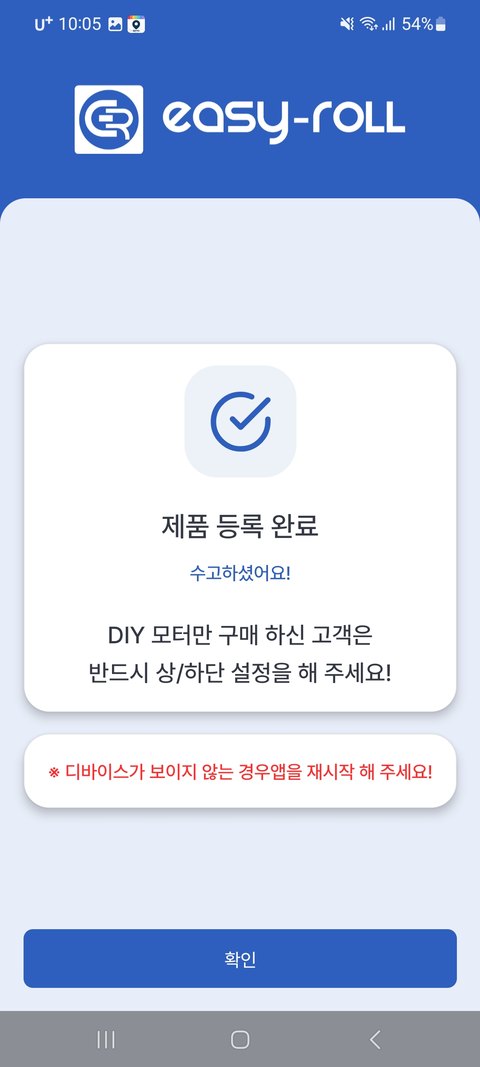
💡 If you've finished registering but a device doesn't appear, try restarting the app.
Once registration is done, your blind is connected to your home Wi-Fi, so you can control it with the app even when you're away from home.
When It's Not Working
| Symptom | Solution |
|---|---|
| "Device could not join the Wi-Fi" appears / registration keeps failing | The device couldn't join your home Wi-Fi — check that the router is 2.4GHz and the Wi-Fi password is correct / Check that the scanned QR code matches the device you're registering / Check that Bluetooth and smartwatch are turned off / Move the phone and device closer to the router and retry |
| "Waiting, will retry soon" appears | It's retrying automatically after a brief delay. Wait a moment and it continues. If it keeps repeating, move your phone close to the device and check the 2.4GHz network and password |
| One device keeps retrying and never finishes | Tap [Stop registration] below the progress list. Devices already registered are kept; register the rest later (with [Add existing zone] if that zone already has a registered blind, otherwise [Add new zone]) |
| Registration keeps dropping or is slow | Keep your smartphone close to the blind while registering. If it's too far away, the connection may fail |
| Device doesn't appear in the app after registration | Fully close the app and restart it |
For more detailed, symptom-by-symptom help, see the Troubleshooting FAQ.