3-1. Alarm Setup (Automatic at a Set Time)
You can have your blind open and close automatically at set times. (For example, open at 7 AM on weekdays.)
Adding an Alarm
- At the top of the app's main screen, tap 🕐 → on the Alarm list screen, tap [+] at the top right
- Select blind — tap Select blinds to expand it, then tap a zone name and check the blinds.
- Tap the check on the right of a zone to select the whole zone.
- You can mix blinds from several zones.
- Nothing is selected at first. You can tap [Save] only after choosing blinds.
- Select a time
- Select a blind position
- Select the days → [Save]
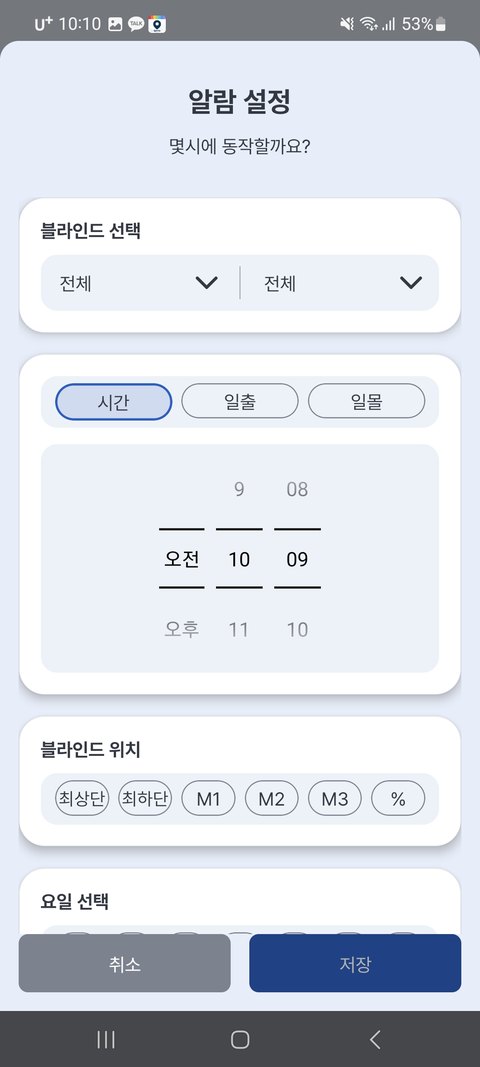
| Item | Description |
|---|---|
| Time | What hour and minute it runs (or based on sunrise/sunset — see below) |
| Blind Position | Top / Bottom / M1–M3 (saved positions) / a custom % |
| Days | The days to repeat |
| Blind | Which zone/blind it applies to (pick any mix of zones and blinds) |
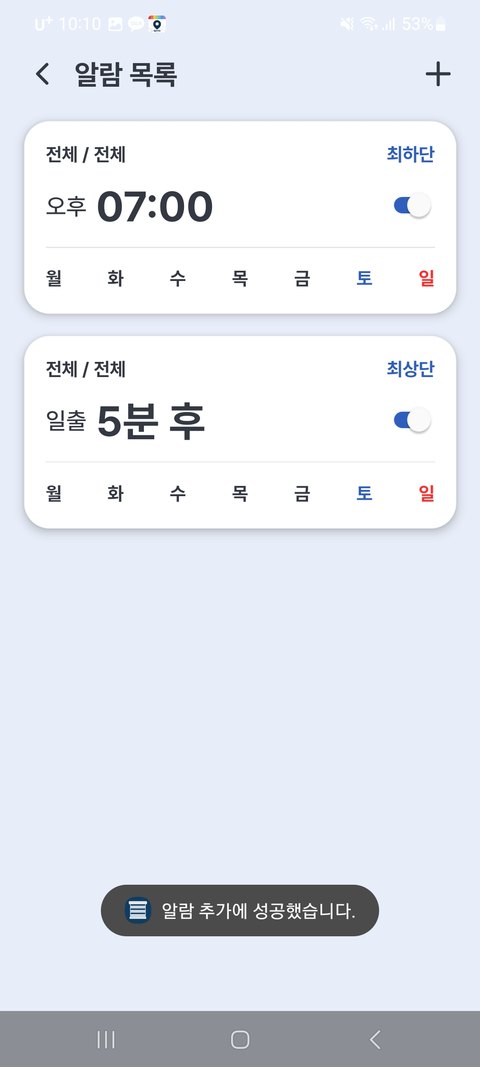
You can turn alarms you've created on and off with a switch in the list.
Match It to Sunrise / Sunset (Sunrise & Sunset Alarms)
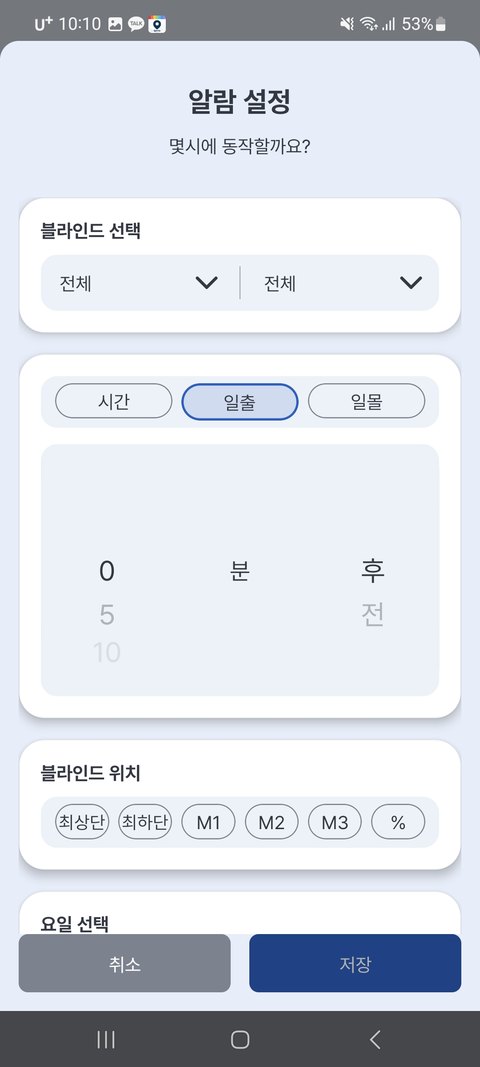
Instead of a fixed time, you can also set it based on sunrise (when the sun comes up) or sunset (when the sun goes down). It follows along automatically even as the times change with the seasons.
When adding an alarm, choose from [Time | Sunrise | Sunset] → then specify [minutes before / minutes after] the reference point.
Example) Close 30 minutes after sunset · Open 10 minutes before sunrise
💡 It runs based on the sunrise/sunset times of your region (the region you selected at sign-up).
Editing & Deleting Alarms
- Turn on/off — the switch next to the alarm in the list
- Edit — select the alarm in the list → change its details
- Delete — press and hold the alarm card and a delete screen appears. Select the alarm to remove and delete it.
⚠️ Alarms require an internet connection. At the set time, the server sends the command to the blind, so the blind must be connected to the internet (home WiFi) for it to work.
💡 Alarms work even when your phone is turned off (because the server sends them). However, if the blind is offline, it may miss the action at that time.