Add Members (Share with Family & Colleagues)
With a single invite code, you can invite family or colleagues to control your blinds together. You can share a whole zone, or pick individual blinds one by one.
Good to know first
- You can open Manage Members straight from the 👥 icon at the top of the main screen (next to the 🕐 alarm icon). It's the same screen as menu ≡ (Settings screen) → [Manage Members].
- Members can only see and control the zones and blinds the owner allows.
- Members can also create schedules (alarms) — they appear as "Created by ○○" in the list.
- You can invite up to 5 members.
- The invite code is 6 digits and works once, within 10 minutes.
- Only the device owner (the inviter) can connect or disconnect Home Assistant. Member accounts don't see that menu. (Home Assistant integration)
- SmartThings and Google Home can also be linked only with the owner's account. If you link with a member account, the blinds shared with you won't appear. (SmartThings · Google Home)
① Invite a member (blind owner)
- Tap 👥 at the top of the main screen to open the Manage Members screen (or menu ≡ (Settings screen) → [Manage Members])
-
[+ Invite]
![Manage Members — [+ Invite]](../../../images/share/share_01_manage.jpg)
-
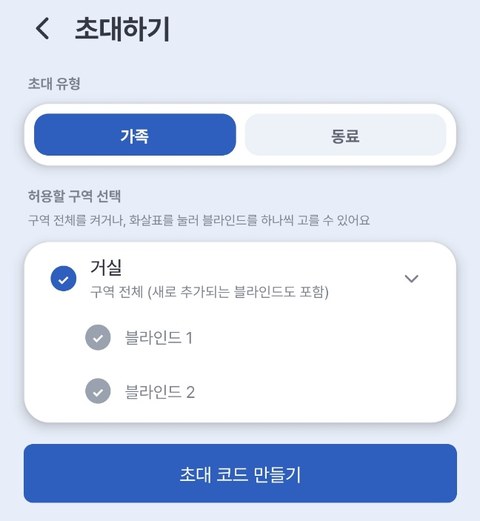
Choose the invite type — Family or Colleague
-
Select zones to share
- Turn on Whole zone to share every blind in that zone (including blinds added later)
- Or tap the arrow (>) on the right of a zone to pick individual blinds (N/M selected)
-
[Create invite code] → a 6-digit code and QR appear
-
Send it with [Send code by text or messenger]
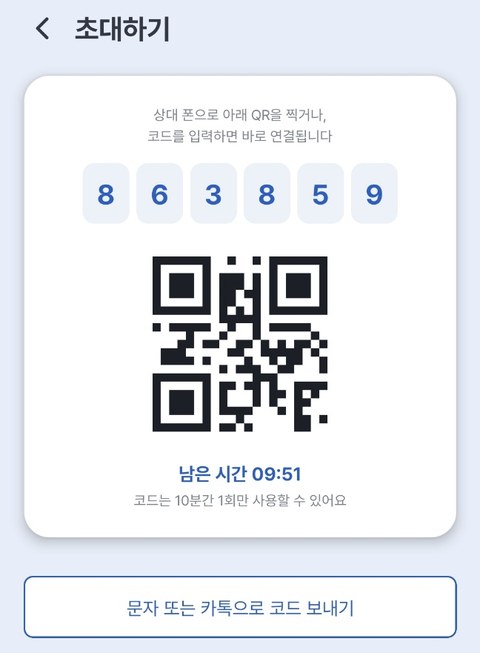
💡 The code is valid once, for 10 minutes. If it expired, tap [Create new code].
② Accept an invite (invited person)
- Sign in to the EasyRoll app (if you don't have it, install & sign up first)
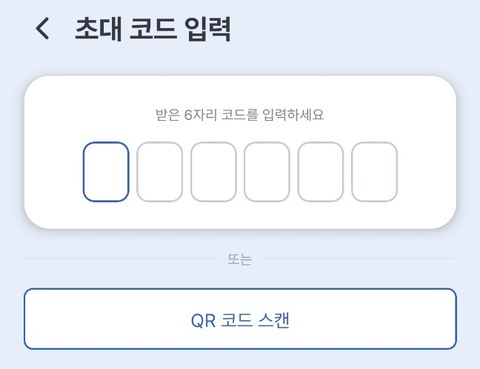
- Tap 👥 at the top of the main screen → [Enter invite code] (or menu ≡ (Settings screen) → [Manage Members] → [Enter invite code])
-
Enter the 6-digit code you received or [Scan QR code] — it connects automatically (if it doesn't, tap [Connect] at the bottom)
-
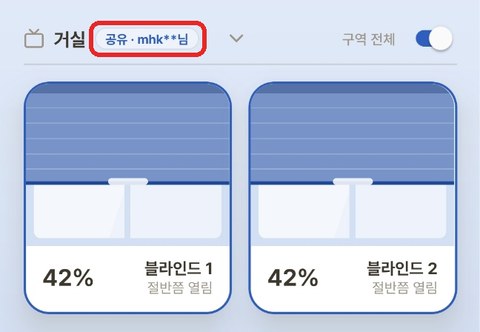
Once connected, the shared zone appears on your main screen labeled "Shared · ○○".
⚠️ If the code doesn't work — it may be expired (over 10 minutes), entered incorrectly, or it's your own code (which can't be used). After several failures, try again later.
Using it together
| Role | Can do |
|---|---|
| Member | Control allowed zones/blinds · create schedules (alarms) |
| Owner | Revoke access · remove members anytime |
💡 A member's schedules appear as "Created by ○○" in the list.
⚠️ When you revoke, unshare, or remove, the schedules that member created for that blind/zone are deleted together.
Managing (blind owner)
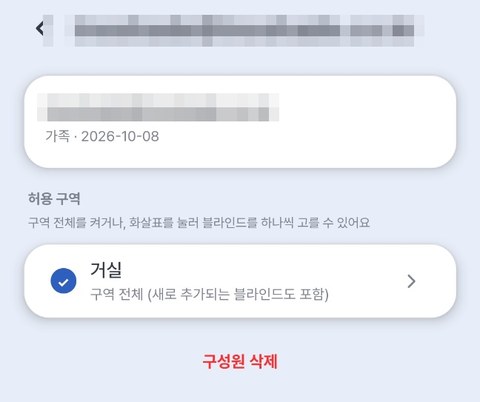
Tap 👥 at the top of the main screen (the Manage Members screen) and select a member to see their Allowed zones and [Remove member].
| To do | How |
|---|---|
| Turn off one zone | In the member's Allowed zones, uncheck that zone → [Confirm] |
| Take back one blind | In the member's Allowed zones, tap the arrow (>) on the right of the zone, uncheck the blind → [Confirm] |
| Remove a member | Select the member → [Remove member] |
💡 If the zone is shared as a Whole zone, you can't turn off just one blind. Turn off the zone first (the member's schedules for that zone are deleted), then pick only the blinds to keep.
⚠️ In every case, the related schedules that member created are deleted together.
Leaving a share (invited person)
Tap 👥 at the top of the main screen → in Shared with me, tap [Leave].
![Shared with me — [Leave]](../../../images/share/share_07_leave.jpg)
After leaving, you can no longer control that zone, and the schedules you made for it are deleted.