3. Basic Usage
Controlling from the App
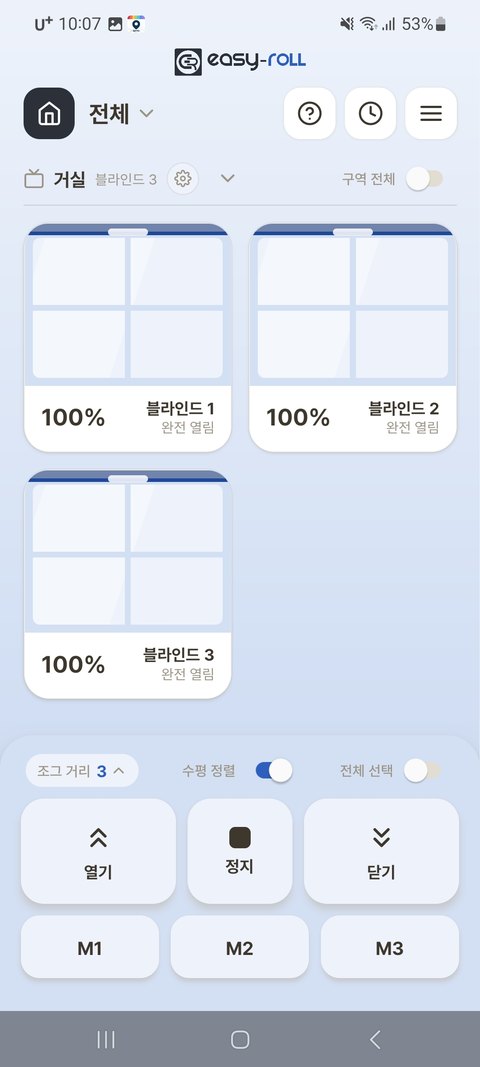
| Button | Action |
|---|---|
| ⌃ Open | Raises all the way to the top (tap briefly to move a little at a time) |
| ⌄ Close | Lowers all the way to the bottom (tap briefly to move a little at a time) |
| ■ Stop | Stops right where it is |
| Blind card | Tap — select which blind to control (you can select several) Press and hold the blind image, then drag up/down — release when "Release to move" appears to move to that position (%) Tap the % number — move just that blind to the position (%) you want Long-press the name — open the [Device info] screen |
| % | Move the selected blinds to any position (%) — scroll the number or type it in (e.g. 30%) |
💡 3-channel devices whose device ID starts with EZS11 don't support dragging the image or tapping the % number. For blinds shared with you, long-pressing the name doesn't open [Device info].
Icons at the top of the main screen
| Icon | What it does |
|---|---|
 |
Replay the usage guide |
 |
Manage Members — invite family or colleagues to share (Add Members) |
 |
Alarms (schedules) (3-1. Alarm Settings) |
 |
Settings menu |
Good to know
- Tap briefly to move a little, long-press to move all the way.
- [Jog step] (levels 1–4) — adjusts how far it moves on a brief tap. The lower the number, the smaller and more precise the movement. (Handy for lining up combi blind patterns)
- [Whole zone] toggle — when on, all blinds in that zone move together.
- [Auto-Level] toggle — when you move several blinds together, it automatically aligns their heights (the bottom-bar line). For details, see 4. Using Multiple Blinds Together.
Simplify the Screen — List View
Tap the ⌄ (arrow) next to a zone title to collapse the cards into a one-line summary list. Handy when you have many blinds.
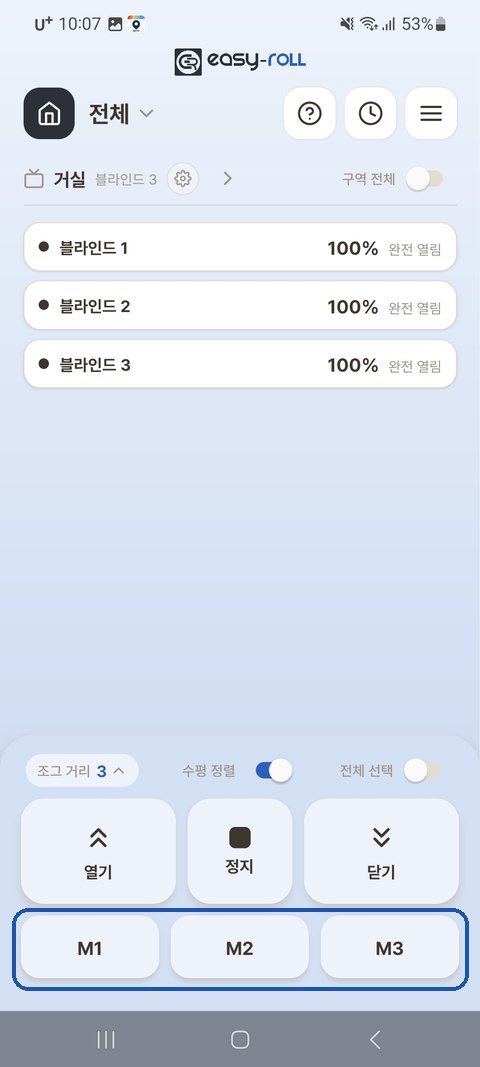
💡 The list works just like the cards: tap to select, tap the % number to set the position (%) of just that blind, and long-press the name for [Device info]. (Dragging works on cards only.)
Saving Frequently Used Positions (Memory)
You can save up to three (M1, M2, M3) frequently used heights (e.g. open halfway) and recall them in one tap.
- Save — move to the height you want → long-press a memory button (M1–M3) → confirm save
- Recall — tap a memory button briefly to move straight to that height
💡 The M1–M3 positions you've saved can also be used as-is in 3-1. Alarm Settings. (e.g. move to the M1 position at 7 a.m.)
Settings Menu at a Glance (Menu ≡ → Settings)
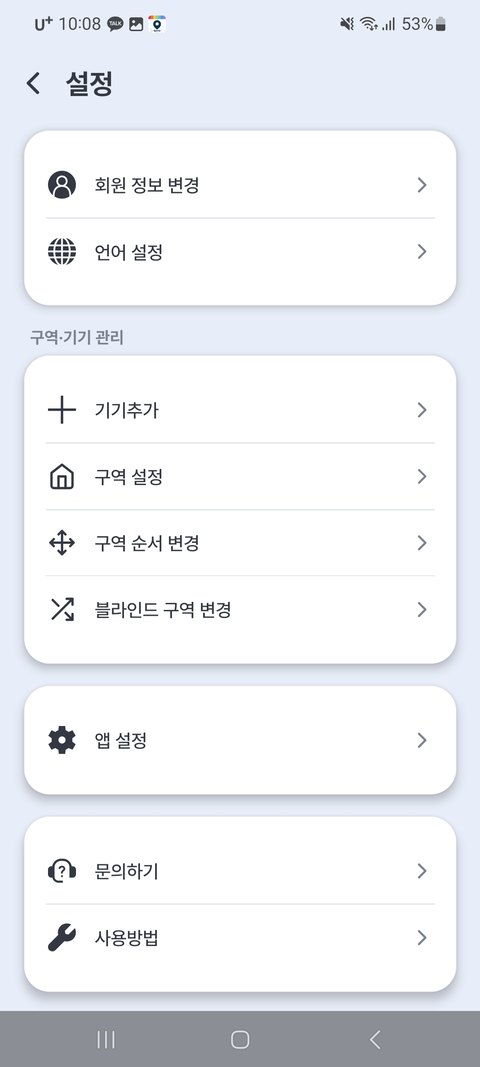
| Menu | What it does |
|---|---|
| Change member information · Set language | Account and app language |
| Manage Members | Invite family or colleagues to share (also opens from the 👥 icon at the top of the main screen) — see Add Members |
| Zone & device management | (on the screen, the next four rows — Add device through Change zone order · Move blind to another zone — are grouped under this heading) |
| Add device | Register an additional blind |
| Up/down setting before device registration | Set the upper/lower limits before registering in the app — your phone connects straight to the blind, no router needed |
| Zone settings | Manage devices by zone (upper/lower limits, Auto-Level, remote, Wi-Fi router, Home Assistant connection, updates, device info) — covered in each chapter |
| Change zone order · Move blind to another zone | Organize the order and grouping shown on the main screen |
| App settings | Set Triple shade mode, Push notification, Background color, and more |
| Contact us · How to use | Customer support, usage guides |
Good to Know
- If the blind snags on something while lowering, it stops automatically (motor protection). Clear the obstruction and run it again.
- A slight movement each time the power is turned on is normal (an operation-check motion).