SmartThings Integration
Works With SmartThings certified
The EasyRoll Smart Blind (EasyRoll Smartblind) is an officially certified partner device that has passed Samsung's WWST (Works With SmartThings) certification. It connects right in the SmartThings app — no separate hub needed, just your Samsung account and EasyRoll account — and Bixby and Routines (automations) are fully supported.
Connect your EasyRoll Smart Blind to Samsung SmartThings to control it alongside your Galaxy phone and Samsung appliances on one screen, and operate it with Bixby voice as well.
Features covered by the certification
| Feature | In SmartThings |
|---|---|
| Open · Close · Stop | Close · Pause · Open buttons on the device card / Bixby / Routines |
| Position % | Set any height with the slider (100% = fully open, 0% = fully closed — SmartThings convention) |
| Preset positions m1 · m2 · m3 | Tap ◎ on the card to move to a preset height in one go; change the height with ⚙ (initially 25% / 50% / 75%) |
| Live status | Opening / Closing / Open / Closed / Partially open — the card updates automatically as the blind moves |
| Online / Offline | If the blind loses power or internet, SmartThings shows it as "offline" |
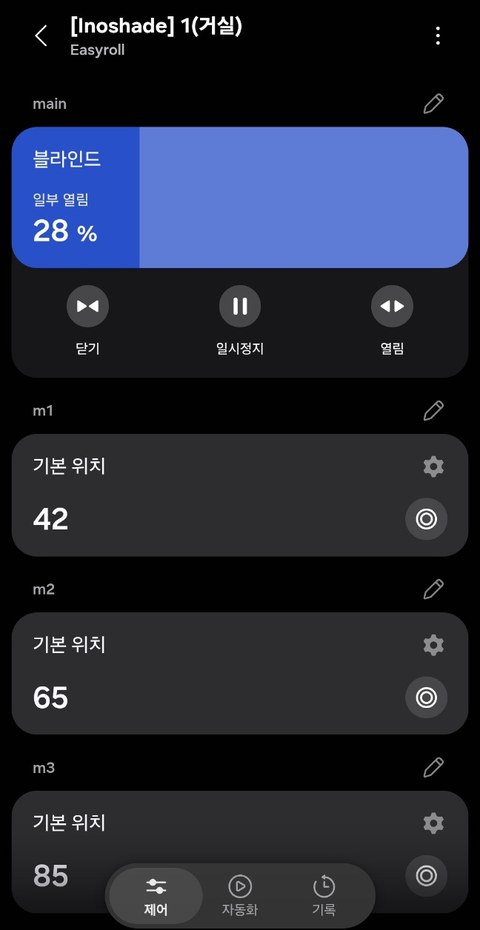
💡 In the screenshot, the m1 · m2 · m3 values 42 / 65 / 85 are examples changed with ⚙. When you first connect, they start at 25 / 50 / 75.
💡 The SmartThings presets m1 · m2 · m3 are separate from the M1–M3 memory positions in the EasyRoll app. Set each up as you like.
What You'll Need
- An account with your blind registered in the EasyRoll app (Register Device completed)
- Connect with the account that registered (owns) the blinds — blinds shared with you as a member are not linked.
- The SmartThings app installed on your smartphone + signed in with your Samsung account
- The blind connected to the internet (home Wi-Fi) — the SmartThings integration works through the EasyRoll server
Connecting (One-Time Setup)
-
SmartThings app → [+ Add Device] → [Add] under Partner devices
![Add device — [Add] under Partner devices](../../images/st/st_01_add_device.jpg)
-
Select EasyRoll SmartBlind from the brand list (type "EasyRoll" in the 🔍 search box to jump straight to it)
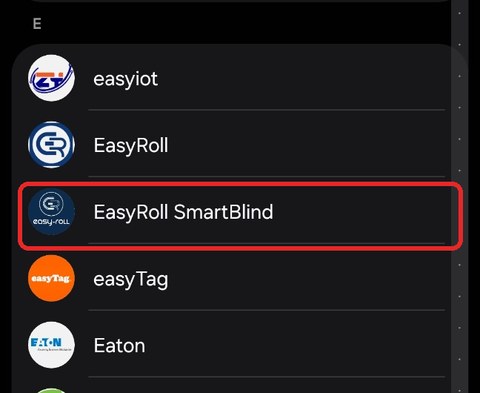
⚠️ A similarly named EasyRoll (the older integration) also appears in the list. For a new connection, be sure to pick EasyRoll SmartBlind (the certified version).
-
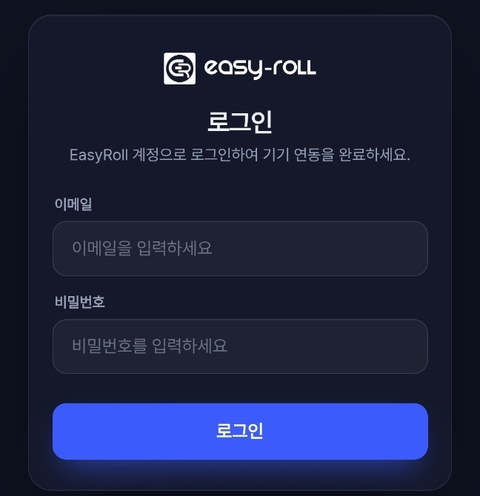
When the EasyRoll login page opens, sign in with your EasyRoll app account (email and password)
-
When your registered blinds appear in the SmartThings [Devices] tab automatically, you're done!
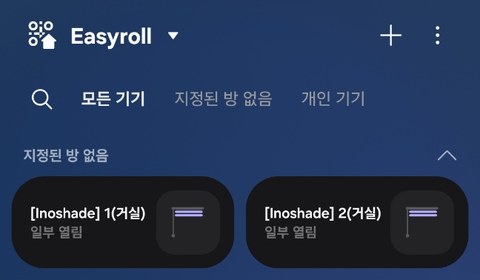
💡 Blinds arrive with names in the form "[Inoshade] number(zone name)" — e.g. "[Inoshade] 1(Living Room)" — and are first placed under "No room assigned". Use ⋮ at the top right of the device screen to give each one an easy-to-say name such as "Living Room Blind" and assign it to a room (e.g. Living Room), so Bixby voice and Routines recognize it more reliably.
💡 All blinds registered in the EasyRoll app are added to SmartThings at once (only blinds registered to your own account — shared blinds are not included). Blinds you register later are added to SmartThings automatically as well (this can take up to about a day).
💡 If you connected to SmartThings earlier, you can keep using that connection as is.
How You Can Use It
| Method | Example |
|---|---|
| SmartThings card | Close/pause/open, position %, presets m1 · m2 · m3 |
| Bixby voice | "Hi Bixby, open the living room blind" / "Open the blind halfway" / "Close the blind" |
| Routines (automation) | Close the blinds in sleep mode · open them with your morning alarm · close all when leaving home · follow sunrise/sunset |
| Together with Samsung appliances | Close the blind when the TV turns on, block sunlight when the air conditioner starts — all in one routine |
When Things Don't Work
| Symptom | Solution |
|---|---|
| EasyRoll SmartBlind isn't in the list | The list is alphabetical — scroll to E or type "EasyRoll" in the 🔍 search box → if it's still missing, update the SmartThings app to the latest version and try again |
| Connected but the device doesn't show | Check that you signed in with the owner account that registered the blinds (blinds shared with you as a member don't appear) → check in the EasyRoll app that the blind is properly registered and online. A newly registered blind can take up to about a day to appear in SmartThings |
| Card controls don't respond | Check that the blind is online (FAQ) → disconnect the SmartThings link and reconnect |
| The position % in SmartThings differs from the app | SmartThings uses the same convention as the EasyRoll app (100% = fully open), so the values should match. Wait a moment after the blind stops or refresh the device screen; if it still differs, check the upper/lower limits, then unlink and link SmartThings again |
| Slider only does 0/100 | The blind's upper/lower limits aren't set → 2-1. Upper/Lower Limit Setup |